After install ubuntu server 18.04 and found boot more 2 minute and have a error "a start job is running for wait for network to be configured"
How to fix this error check network interface
sudo networkctl
IDX LINK TYPE OPERATIONAL SETUP
1 lo loopback carrier unmanaged
2 enp4s5 ether routable configured
3 enp5s0 ether no-carrier configuring
sudo networkctl status enp4s5
1. sudo vim /run/systemd/generator/network-online.target.wants/systemd-networkd-wait-online.service
change this line
ExecStart=/lib/systemd/systemd-networkd-wait-online
to
ExecStart=/lib/systemd/systemd-networkd-wait-online --interface=enp4s5 --quiet
------------------edit-----------------------------------
[Service]
Type=oneshot
ExecStart=/lib/systemd/systemd-networkd-wait-online --interface=enp4s5 --quiet
RemainAfterExit=yes
Ô
------------------end------------------------------------
2. reboot
Ref: a-start-job-is-running-for-wait-for-network-to-be-configured-ubuntu-server-17-1
Friday, March 13, 2020


Thursday, March 12, 2020
Tuesday, March 10, 2020
install and configure snmp
1. For CentOS 7
install service snmp
yum install net-snmp net-snmp-utils -y
Set configure file /etc/snmp/snmpd.conf
--------------------------------edit------------------------------------------------------------
# sec.name source community
com2sec mynetwork default systemsecret
####
# Second, map the security name into a group name:
# groupName securityModel securityName
group notConfigGroup v1 mynetwork
group notConfigGroup v2c mynetwork
2. For Debain 9
Install service snmpd
apt install snmpd snmp libsnmp-dev
Edit configure /etc/snmp/snmpd.con
---------------------------------------------------------
# AGENT BEHAVIOUR
#
# Listen for connections from the local system only
agentAddress udp:127.0.0.1:161,udp:192.168.0.xx:161
install service snmp
yum install net-snmp net-snmp-utils -y
Set configure file /etc/snmp/snmpd.conf
--------------------------------edit------------------------------------------------------------
# sec.name source community
com2sec mynetwork default systemsecret
####
# Second, map the security name into a group name:
# groupName securityModel securityName
group notConfigGroup v1 mynetwork
group notConfigGroup v2c mynetwork
# Make at least snmpwalk -v 1 localhost -c public system fast again.
# name incl/excl subtree mask(optional)
view systemview included .1.3.6.1.2.1.1
view systemview included .1.3.6.1.2.1.25.1.1
####
# Finally, grant the group read-only access to the systemview view.
# group context sec.model sec.level prefix read write notif
access notConfigGroup "" any noauth exact systemview none none
--------------------------------save configure-----------------------------------------------
Enable service
systemctl enable snmpd
systemctl start snmpd
systemctl status snmpd
Check port runing
netstat -tulpn
udp 0 0 0.0.0.0:161 0.0.0.0:* 21402/snmpd
Test snmpd at local server
snmpwalk -v 1 -c systemsecret -O e 127.0.0.1
Add firewall
firewall-cmd --permanent --add-port=161/udp
firewall-cmd --reload
firewall-cmd --list-all
2. For Debain 9
Install service snmpd
apt install snmpd snmp libsnmp-dev
Edit configure /etc/snmp/snmpd.con
---------------------------------------------------------
# AGENT BEHAVIOUR
#
# Listen for connections from the local system only
agentAddress udp:127.0.0.1:161,udp:192.168.0.xx:161
# ACCESS CONTROL
#
# system + hrSystem groups only
view systemonly included .1.3.6.1.2.1.1
view systemonly included .1.3.6.1.2.1.25.1
# Full access from the local host
#rocommunity public localhost
# Default access to basic system info
# rocommunity public default -V systemonly
rocommunity serversecret default -V systemonly
# rocommunity6 is for IPv6
rocommunity6 public default -V systemonly
#rocommunity secret 10.0.0.0/16
# Full read-only access for SNMPv3
rouser authOnlyUser
# SYSTEM INFORMATION
#
# Note that setting these values here, results in the corresponding MIB objects being 'read-only'
# See snmpd.conf(5) for more details
sysLocation Sitting on the Dock of the Bay
sysContact Me
# Application + End-to-End layers
sysServices 72
---------------------------------------------------------------------------
Enable service
systemctl enable snmpd
systemctl start snmpd
systemctl status snmpd
Check port runing
netstat -tulpn
udp 0 0 192.168.0.xx:161 0.0.0.0:* 12142/snmpd
udp 0 0 127.0.0.1:161 0.0.0.0:* 12142/snmpd
ss -alnp | grep snmp | grep 161
udp UNCONN 0 0 192.168.0.xx:161 *:* users:(("snmpd",pid=12142,fd=12))
udp UNCONN 0 0 127.0.0.1:161 *:* users:(("snmpd",pid=12142,fd=9))
Test snmpd at local server
snmpwalk -v2c -c serversecret localhost
Add firewall
firewall-cmd --permanent --add-port=161/udp
firewall-cmd --reload
firewall-cmd --list-all
Wednesday, January 22, 2020
Configure Master / Slave BIND DNS Server on CentOS 8 / RHEL 8
Configure Master / Slave BIND DNS Server on CentOS 8 / RHEL 8
for check zone file
named-checkzone abc.com /var/named/abc.com.zone
Directory zone = /var/named/
dnstop ens192
dnstop -l 2 ens192
dnstop -l 3 ens192
yum install dnstop
dnstop ens192
dnstop -l 2 ens192
dnstop -l 3 ens192
yum install dnstop
Tuesday, January 7, 2020
How to Add New Disks Using LVM to an Existing Linux System
How to Add New Disks Using LVM to an Existing Linux System
Read on this web site add-new-disks-using-lvm-to-linux
Friday, October 4, 2019
how to change screen login ubuntu 18.04 budgie
1. create file slick-greeter.conf on /etc/lightdm/
sudo vim /etc/lightdm/slick-greeter.conf
------------------------------------------------------
[Greeter]
#background=/usr/share/backgrounds/Definitive_Light_Zen_Orange_by_Pierre_Cante.jpg
background=/usr/share/backgrounds/cat-login.jpg
-----------------------------------------------------
save file
2. bring your screen login to the folder /usr/share/backgrounds/
3. reboot
Ref:
Greeter
sudo vim /etc/lightdm/slick-greeter.conf
------------------------------------------------------
[Greeter]
#background=/usr/share/backgrounds/Definitive_Light_Zen_Orange_by_Pierre_Cante.jpg
background=/usr/share/backgrounds/cat-login.jpg
-----------------------------------------------------
save file
2. bring your screen login to the folder /usr/share/backgrounds/
3. reboot
Ref:
Greeter
Tuesday, September 3, 2019
How to check if port is in use on Linux or Unix
How to check if port is in use on Linux or Unix
sudo lsof -i -P -n | grep LISTEN
sudo netstat -tulpn | grep LISTEN
sudo lsof -i:22 ## see a specific port such as 22 ##
sudo nmap -sTU -O IP-address-Here
Option #1: lsof command
$ sudo lsof -i -P -n
$ sudo lsof -i -P -n | grep LISTEN
$ doas lsof -i -P -n | grep LISTEN ### [OpenBSD] ###
Linux netstat syntax
netstat -tulpn | grep LISTEN
watch netstat -tulpn
sudo ss -tulw
sudo ss -tulwn
netstat -tulpn |grep tcp |grep -v 127.0.0.1 |grep -v 192.168.101.36
-v is invert matching (every thing except 127.0.0.1 and 192.168.101.36)
Where ss command options are as follows:
- -t : Show only TCP sockets on Linux
- -u : Display only UDP sockets on Linux
- -l : Show listening sockets. For example, TCP port 22 is opened by SSHD server.
- -p : List process name that opened sockets
- -n : Don’t resolve service names i.e. don’t use DNS
FreeBSD/MacOS X netstat syntax
$ netstat -anp tcp | grep LISTEN
$ netstat -anp udp | grep LISTEN
OpenBSD netstat syntax
$ netstat -na -f inet | grep LISTEN
$ netstat -nat | grep LISTEN
Option #3: nmap command
The syntax is:
You can combine TCP/UDP scan in a single command:$ sudo nmap -sT -O localhost
$ sudo nmap -sU -O 192.168.2.13 ##[ list open UDP ports ]##
$ sudo nmap -sT -O 192.168.2.13 ##[ list open TCP ports ]##$ sudo nmap -sTU -O 192.168.2.13A note about Windows users
You can check port usage from Windows operating system using following command:
netstat -bano | more
netstat -bano | grep LISTENING
netstat -bano | findstr /R /C:"[LISTEING]"
Ref:
unix-linux-check-if-port-is-in-use-command
Thursday, July 4, 2019
How to install and use powershell on ubuntu
snap install powershell –classic
Run Powershell
#powershell
Connect to O365
Create file connect powershell
-------------------connect-exchangeonline.ps1-----------------------------
Set-ExecutionPolicy remotesigned
$UserCredential = (Get-Credential -Credential email@domain.com)
$Session = New-PSSession -ConfigurationName Microsoft.Exchange -ConnectionUri https://outlook.office365.com/powershell-liveid/ -Credential $UserCredential -Authentication Basic -AllowRedirection
Import-PSSession $Session -DisableNameChecking
#Remove-PSSession $session
Connect-MsolService -Credential $UserCredential
-------------------End--------------------------------------------------------------
#PS /home/hades/Downloads> ./connect-exchangeonline.ps1
PowerShell credential request
Enter your credentials.
Password for user email@domain.com: *********
Success
Test command
Check version
PS /home/hades/Downloads> $PSVersionTable
Name Value
---- -----
PSVersion 6.2.1
PSEdition Core
GitCommitId 6.2.1
OS Linux 4.15.0-54-generic #58-Ubuntu SMP Mon Jun 24 10:55:24 UTC 2019
Platform Unix
PSCompatibleVersions {1.0, 2.0, 3.0, 4.0…}
PSRemotingProtocolVersion 2.3
SerializationVersion 1.1.0.1
WSManStackVersion 3.0
MFA
Connect Exopssession: Connect-EXOPSSession -UserPrincipalName email@yourdomain.com
Close power shell connection:Get-PSSession
Get-PSSession | Remove-PSSession
Create new Distribution group
New-DistributionGroup -Name "Group-test01" -DisplayName "Group test by hades" -Type "Security"
Check distribution group information?
Get-DistributionGroup -Identity "distribution group"
Get-DistributionGroup -Identity "distribution group" | Format-List
Get-DistributionGroup "distribution group" | Format-Table
* Show member on group with name and email address
Get-DistributionGroupMember "distribution group" | Format-Table Name, PrimarySMTPAddress -Auto
Check list member email on Distribution group
Get-DistributionGroupMember -Identity "distribution group" | Format-Table Name, Alias, PrimarySMTPAddress -Auto
* Export email form distribute group
Get-DistributionGroupMember -Identity "distribution group" ` | Select-Object Displayname,Name,PrimarySMTPAddress ` | Export-CSV -Path "/home/User/Downloads/distribution group.csv" -Encoding UTF8
* Import email form distribute group
1. create new file .csv like Distibute group.csv and input data like this see below.
-----------------Distibute group.csv---------------
name,emailaddress
jack,jack@domain.com
mack,mack@domain.com
---------------------------------------------
2. run command
Import-Csv group.csv | foreach {Add-DistributionGroupMember -Identity "Distibute group" -Member $_.name}
Add member to distribution group
Add-DistributionGroupMember -Identity "distribution group" -Member "email@domain.com"
Remove distribution group and Member in group
Remove-DistributionGroupMember -Identity "distribution group"
Remove-DistributionGroupMember -Identity "distribution group" -Member "email@domain.com"
View all O365group list
Get-UnifiedGroup -Identity *
View member on O365 group list
Get-UnifiedGroup -Identity groupname | Get-UnifiedGroupLinks -LinkType Member | Format-Table Name, PrimarySMTPAddress
View member on O365 subscribers list ตรวจสอบกรณีคนในกลุ่ม O365 ไม่ได้รับเมล
Get-UnifiedGroupLinks -Identity groupname@domain.com -LinkType subscribers
ให้แอดเพิ่มเข้าไป ด้วยคำสั่งนี้
Add-UnifiedGroupLinks -Identity groupname@domain.com -LinkType subscribers -Links email1@domain.com
Unsubscribers member O365 group
Remove-UnifiedGroupLinks -Identity "groupname" -LinkType Members -Links abc.d@domain.com,abcde.f@domain.com
Export member on O365 group list
Get-UnifiedGroup -Identity groupname | Get-UnifiedGroupLinks -LinkType Member | select Name, PrimarySMTPAddress |Export-Csv C:\Users\user01\Documents\groupname.csv
Add Owner distribution group
-Check owner on distribution
Get-DistributionGroup -Anr "distribution name" | Format-Table Name, ManagedBY, Alias, Email -Auto
-Replace
Set-DistributionGroup "distribution group" -ManagedBy "email@domain.com" -BypassSecurityGroupManagerCheck
-Add more one email
Set-DistributionGroup "distribution group" -ManagedBy 'admin01','admin02','systemadmin' -BypassSecurityGroupManagerCheck
Get mailbox permission
Get-MailboxPermission "user1"
Add Full access mailbox permission : user2 full access user1
Add-MailboxPermission -Identity "user1" -User "user2" -AccessRights FullAccess -InheritanceType All
Remove Full access mailbox permission
Remove-MailboxPermission -Identity "user1" -User "user2" -AccessRights FullAccess -InheritanceType All
Get Last login:
Get-MailboxStatistics "user1"
Get Mailbox size:
Get-MailboxStatistics "user1" | ft DisplayName, TotalItemSize, ItemCount
Get All Mailbox
Get-Mailbox | Select-Object DisplayName, primarySMTPAddress
Get one mailbox
Get-Mailbox "user1" | Select-Object DisplayName, primarySMTPAddress
Display the list of a SMTP aliases and the primary address
Get-Mailbox "user1" | fl EmailAddresses, PrimarySmtpAddresses
Add Permission Calendar access mailbox
Add-MailboxFolderPermission -Identity "user1:\Calendar" -User "user2" -AccessRights Reviewer
Add permission Calendar access Default to Reviewer
Set-MailboxFolderPermission -Identity "user1:\Calendar" -User Default -AccessRights Reviewer
Set permission Calendar access Default (back)
Set-MailboxFolderPermission -Identity "user1:\Calendar" -User Default -AccessRights AvailabilityOnly
View permission calendar who access mailbox
Get-MailboxFolderPermission -Identity "user1:\Calendar"
foreach($i in Get-Mailbox -ResultSize 100 -Filter 'DisplayName -like "*ห้องประชุม*"') {Get-MailboxFolderPermission $($i.Alias + ":\Calendar")| Select-Object Identity,User,AccessRights | Sort-Object Identity}
* -ResultSize Unlimited
Delete user access pemission calendar
Remove-MailboxFolderPermission -Identity "user1:\Calendar" -User "user2"
View number of account license
Get-MsolAccountSku
Get all assigned License office O365
Get-MsolUser -All | Where-Object { ($_.licenses).AccountSkuId -match "nanyangtextilegroup:STANDARDPACK" } | Select-Object DisplayName,UserPrincipalName,Licenses,Department,Title,Country,State,WhenCreated | Export-Csv C:\Users\hades\Documents\allmaillicense2-1.csv
Get-MsolUser -MaxResults 10 | Where-Object { ($_.licenses).AccountSkuId -match "nanyangtextilegroup:STANDARDPACK" } | Select-Object DisplayName,UserPrincipalName,Licenses,Department,Title,Country,State,WhenCreated | Format-Table
Get-MsolUser -All | Where-Object { $_.isLicensed -eq "E1" } | Select-Object DisplayName,UserPrincipalName,Licenses,Department,Title,Country,State,WhenCreated | Export-Csv C:\Users\hades\Documents\allmaillicense2-1.csv
Get all Unlicense office O365
Get-MsolUser -UnlicensedUsersOnly | Select-Object DisplayName,UserPrincipalName,Licenses,Department,Title,Country,State | Export-Csv C:\Users\hades\Documents\unlicense.csv
Get all email user on Department "QA"
Get-MsolUser -MaxResults 1000 | where {$_.Department -eq "QA"} | Select-Object DisplayName,UserPrincipalName,Licenses,Department,Title,Country,State | Format-Table
Get all email user by Contry "Vietnam"
Get-MsolUser -MaxResults 1000 | where {$_.Country -eq "Vietnam"} | Select-Object DisplayName,UserPrincipalName,Licenses,Department,Title,Country,State | Format-Table
Get view detail email
Get-MsolUser -All | where {$_.DisplayName -eq "ABC DEFC"} | Select-Object DisplayName,UserPrincipalName,Department,Title,Country,State,WhenCreated | Format-Table
Display a list of users who haven’t changed their passwords for more than 90 days:
Get-MsolUser -MaxResults 20 | Where-Object { $_.LastPasswordChangeTimestamp -lt (Get-Date).AddDays(-90)} | Select-Object DisplayName,UserPrincipalName,LastPasswordChangeTimestamp,Licenses,PasswordNeverExpires | Format-Table
Change new password email with Powershell
Set-MsolUserPassword -UserPrincipalName user1@onmicrosoft.com -NewPassword P@SSw0rd!
Rebuild Index email O365
New-MoveRequest -Identity user1@domain.com
Check status rebuild Index
Get-MoveRequest -Identity user1@domain.com
Get mail Inbox Forwarding
Get-Mailbox -ResultSize 2000 | select UserPrincipalName,ForwardingSmtpAddress,DeliverToMailboxAndForward | Export-csv Office365Forwards.csv -NoTypeInformation
Get email Forwarding
Get-Mailbox email@domain.com | FL DeliverToMailboxAndForward,ForwardingAddress,ForwardingSmtpAddress
Create new external contact
New-MailContact -Name "My-gmail" -ExternalEmailAddress email@gmail.com
Display user not set Archive
Get-Mailbox -Filter {ArchiveStatus -Eq "None" -AND RecipientTypeDetails -eq "UserMailbox"}
Check for Archive status for some user
Search and Delete mail by Subject
2. Get-Mailbox -ResultSize unlimited | Search-Mailbox -SearchQuery 'Subject:"subject send mail"' -DeleteContent
Search-Mailbox "sourcmail" -TargetMailbox "targetmail" -TargetFolder "TargetFolder" -LogLevel Full

Check archive In-place size


Ref:
get-msoluser
office-365-powershell-commands
how-to-install-microsoft-powershell-on-ubuntu
forward email
search and delete mail
copy mailbox
MFA Function
Connect-MsolService
Close power shell connection:Get-PSSession
Get-PSSession | Remove-PSSession
New-DistributionGroup -Name "Group-test01" -DisplayName "Group test by hades" -Type "Security"
Check distribution group information?
Get-DistributionGroup -Identity "distribution group"
Get-DistributionGroup -Identity "distribution group" | Format-List
Get-DistributionGroup "distribution group" | Format-Table
* Set receive mail from out side
Get-DistributionGroup -Identity Group name | Set-DistributionGroup -RequireSenderAuthenticationEnabled $False
* Show member on group with name and email address
Get-DistributionGroupMember "distribution group" | Format-Table Name, PrimarySMTPAddress -Auto
Check list member email on Distribution group
Get-DistributionGroupMember -Identity "distribution group" | Format-Table Name, Alias, PrimarySMTPAddress -Auto
* Export email form distribute group
Get-DistributionGroupMember -Identity "distribution group" ` | Select-Object Displayname,Name,PrimarySMTPAddress ` | Export-CSV -Path "/home/User/Downloads/distribution group.csv" -Encoding UTF8
* Import email form distribute group
1. create new file .csv like Distibute group.csv and input data like this see below.
-----------------Distibute group.csv---------------
name,emailaddress
jack,jack@domain.com
mack,mack@domain.com
---------------------------------------------
2. run command
Import-Csv group.csv | foreach {Add-DistributionGroupMember -Identity "Distibute group" -Member $_.name}
Add member to distribution group
Add-DistributionGroupMember -Identity "distribution group" -Member "email@domain.com"
Remove distribution group and Member in group
Remove-DistributionGroupMember -Identity "distribution group"
Remove-DistributionGroupMember -Identity "distribution group" -Member "email@domain.com"
View all O365group list
Get-UnifiedGroup -Identity *
View member on O365 group list
Get-UnifiedGroup -Identity groupname | Get-UnifiedGroupLinks -LinkType Member | Format-Table Name, PrimarySMTPAddress
View member on O365 subscribers list ตรวจสอบกรณีคนในกลุ่ม O365 ไม่ได้รับเมล
Get-UnifiedGroupLinks -Identity groupname@domain.com -LinkType subscribers
ให้แอดเพิ่มเข้าไป ด้วยคำสั่งนี้
Add-UnifiedGroupLinks -Identity groupname@domain.com -LinkType subscribers -Links email1@domain.com
Unsubscribers member O365 group
Remove-UnifiedGroupLinks -Identity "groupname" -LinkType Members -Links abc.d@domain.com,abcde.f@domain.com
Export member on O365 group list
Get-UnifiedGroup -Identity groupname | Get-UnifiedGroupLinks -LinkType Member | select Name, PrimarySMTPAddress |Export-Csv C:\Users\user01\Documents\groupname.csv
Add Owner distribution group
-Check owner on distribution
Get-DistributionGroup -Anr "distribution name" | Format-Table Name, ManagedBY, Alias, Email -Auto
-Replace
Set-DistributionGroup "distribution group" -ManagedBy "email@domain.com" -BypassSecurityGroupManagerCheck
-Add more one email
Set-DistributionGroup "distribution group" -ManagedBy 'admin01','admin02','systemadmin' -BypassSecurityGroupManagerCheck
Get mailbox permission
Get-MailboxPermission "user1"
Add Full access mailbox permission : user2 full access user1
Add-MailboxPermission -Identity "user1" -User "user2" -AccessRights FullAccess -InheritanceType All
Remove Full access mailbox permission
Remove-MailboxPermission -Identity "user1" -User "user2" -AccessRights FullAccess -InheritanceType All
Get Last login:
Get-MailboxStatistics "user1"
Get Mailbox size:
Get-MailboxStatistics "user1" | ft DisplayName, TotalItemSize, ItemCount
Get All Mailbox
Get-Mailbox | Select-Object DisplayName, primarySMTPAddress
Get one mailbox
Get-Mailbox "user1" | Select-Object DisplayName, primarySMTPAddress
Display the list of a SMTP aliases and the primary address
Get-Mailbox "user1" | fl EmailAddresses, PrimarySmtpAddresses
Add Permission Calendar access mailbox
Add-MailboxFolderPermission -Identity "user1:\Calendar" -User "user2" -AccessRights Reviewer
Add permission Calendar access Default to Reviewer
Set-MailboxFolderPermission -Identity "user1:\Calendar" -User Default -AccessRights Reviewer
Set permission Calendar access Default (back)
Set-MailboxFolderPermission -Identity "user1:\Calendar" -User Default -AccessRights AvailabilityOnly
View permission calendar who access mailbox
Get-MailboxFolderPermission -Identity "user1:\Calendar"
foreach($i in Get-Mailbox -ResultSize 100 -Filter 'DisplayName -like "*ห้องประชุม*"') {Get-MailboxFolderPermission $($i.Alias + ":\Calendar")| Select-Object Identity,User,AccessRights | Sort-Object Identity}
* -ResultSize Unlimited
Delete user access pemission calendar
Remove-MailboxFolderPermission -Identity "user1:\Calendar" -User "user2"
View number of account license
Get-MsolAccountSku
Get all assigned License office O365
Get-MsolUser -All | Where-Object { ($_.licenses).AccountSkuId -match "nanyangtextilegroup:STANDARDPACK" } | Select-Object DisplayName,UserPrincipalName,Licenses,Department,Title,Country,State,WhenCreated | Export-Csv C:\Users\hades\Documents\allmaillicense2-1.csv
Get-MsolUser -MaxResults 10 | Where-Object { ($_.licenses).AccountSkuId -match "nanyangtextilegroup:STANDARDPACK" } | Select-Object DisplayName,UserPrincipalName,Licenses,Department,Title,Country,State,WhenCreated | Format-Table
Get-MsolUser -All | Where-Object { $_.isLicensed -eq "E1" } | Select-Object DisplayName,UserPrincipalName,Licenses,Department,Title,Country,State,WhenCreated | Export-Csv C:\Users\hades\Documents\allmaillicense2-1.csv
Get all Unlicense office O365
Get-MsolUser -UnlicensedUsersOnly | Select-Object DisplayName,UserPrincipalName,Licenses,Department,Title,Country,State | Export-Csv C:\Users\hades\Documents\unlicense.csv
Get all email user on Department "QA"
Get-MsolUser -MaxResults 1000 | where {$_.Department -eq "QA"} | Select-Object DisplayName,UserPrincipalName,Licenses,Department,Title,Country,State | Format-Table
Get all email user by Contry "Vietnam"
Get-MsolUser -MaxResults 1000 | where {$_.Country -eq "Vietnam"} | Select-Object DisplayName,UserPrincipalName,Licenses,Department,Title,Country,State | Format-Table
Get view detail email
Get-MsolUser -All | where {$_.DisplayName -eq "ABC DEFC"} | Select-Object DisplayName,UserPrincipalName,Department,Title,Country,State,WhenCreated | Format-Table
Display a list of users who haven’t changed their passwords for more than 90 days:
Get-MsolUser -MaxResults 20 | Where-Object { $_.LastPasswordChangeTimestamp -lt (Get-Date).AddDays(-90)} | Select-Object DisplayName,UserPrincipalName,LastPasswordChangeTimestamp,Licenses,PasswordNeverExpires | Format-Table
Change new password email with Powershell
Set-MsolUserPassword -UserPrincipalName user1@onmicrosoft.com -NewPassword P@SSw0rd!
Rebuild Index email O365
New-MoveRequest -Identity user1@domain.com
Check status rebuild Index
Get-MoveRequest -Identity user1@domain.com
Get mail Inbox Forwarding
Get-Mailbox -ResultSize 2000 | select UserPrincipalName,ForwardingSmtpAddress,DeliverToMailboxAndForward | Export-csv Office365Forwards.csv -NoTypeInformation
Get email Forwarding
Get-Mailbox email@domain.com | FL DeliverToMailboxAndForward,ForwardingAddress,ForwardingSmtpAddress
Create new external contact
New-MailContact -Name "My-gmail" -ExternalEmailAddress email@gmail.com
Display user not set Archive
Get-Mailbox -Filter {ArchiveStatus -Eq "None" -AND RecipientTypeDetails -eq "UserMailbox"}
Check for Archive status for some user
Get-mailbox usermail|fl ArchiveStatus
Get-Mailbox usermail |fl ArchiveStatus,Archivedatabase,Archiveguid
Enable Archive all
Get-Mailbox -Filter {ArchiveStatus -Eq "None" -AND RecipientTypeDetails -eq "UserMailbox"} | Enable-Mailbox –Archive
Enable one person
Enable-Mailbox -Identity "user mail” -Archive
Example : Enable-Mailbox -Identity "akom.b” -Archive
Search and Delete mail by Subject
| 1. Search-Mailbox -Identity "email@domain.com" -SearchQuery 'Subject:"subject send mail"' -DeleteContent |
Copy all email from one to another mail
example: Search-Mailbox "email.a" -TargetMailbox "email.c" -TargetFolder "Email User" -LogLevel Full
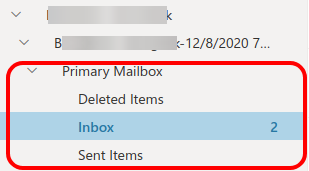
Check archive In-place size


get-msoluser
office-365-powershell-commands
how-to-install-microsoft-powershell-on-ubuntu
forward email
search and delete mail
copy mailbox
Wednesday, May 29, 2019
check disk size sort by bigger
sudo apt install tree
tree -ihafF /home | tr '[]' ' '|sort -k1hr|head -10
tree -ihafF /home | tr '[]' ' '|sort -k1hr|head -10
Tuesday, April 2, 2019
Install monitorix and reset password
sudo htpasswd -d -c /var/lib/monitorix/htpasswd admin
New password:
Re-type new password:
Adding password for user admin
Install monitorix
Subscribe to:
Posts (Atom)